Adding a shared printer on Windows sounds like the kind of task that should take five minutes, which is exactly why this problem catches so many admins. You find a PowerShell example, test it interactively, watch it work, then drop the same command into a deployment tool and expect the result to hold up everywhere.
Then users log in and the printer is nowhere to be found.
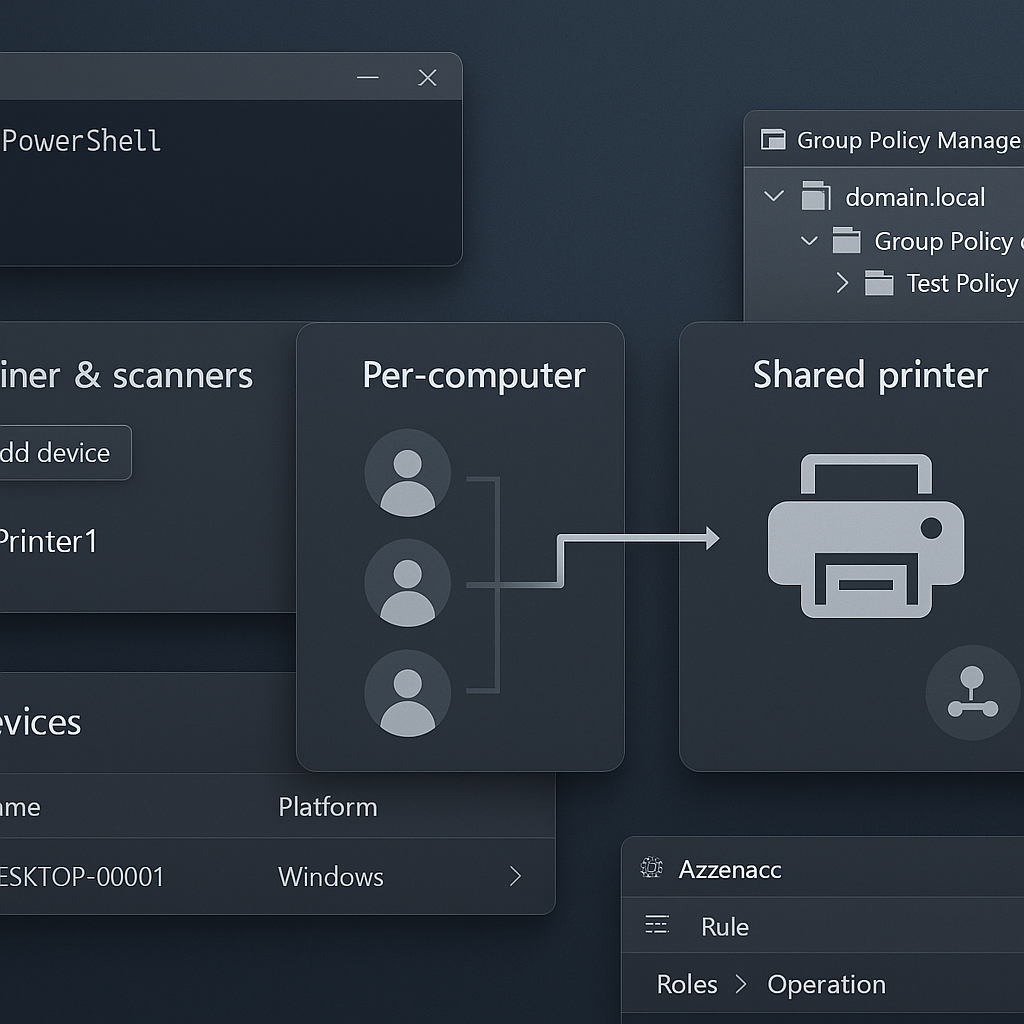
Usually the problem is not that the script failed. It is that the script succeeded in the wrong context. That is the whole lesson here: a printer added for the current user is not the same thing as a printer deployed for every user on the machine.
The Windows behavior in this article matters whether you are doing this through FileWave, another management platform, or just raw scripting. If you are using FileWave, the good news is that this kind of task is easy to package and deploy as a Fileset. The catch is that you still have to design it correctly for the way Windows behaves in the real world. Understanding the context problem is what makes the rollout design make sense in the first place, no matter what tool you use.
Why the first script often looks right
A common first attempt is to use Microsoft’s Add-Printer cmdlet like this:
Import-Module PrintManagement
Add-Printer -ConnectionName "\\printserver\PrinterShare"
Quoting the share path is the clearer habit here, and it keeps the example closer to how most admins write string parameters in real scripts.
In that example, \\printserver\PrinterShare is the printer share path — the network path to a shared printer hosted on a print server. In a real environment, you would replace printserver with your server name and PrinterShare with the shared printer name.
If you run that command in your own session, it may work exactly the way you expect. That is what makes it deceptive.
The key behavior here is current-user behavior. Microsoft’s AddPrinterConnection documentation says it adds a connection to the specified printer for the current user, which is the pattern that matters here even when admins start with a simple Add-Printer test. If you are logged in and testing locally, the current user is you, so you see the printer and the test looks successful.
But if the same kind of printer-connection command runs through a management platform that executes scripts as SYSTEM, then the current user context is SYSTEM, not the interactive user who signs in and expects to see the printer. If you are newer to Windows administration, SYSTEM is a built-in Windows machine account with very high privilege. It is not the same thing as the real user who signs in and expects to see the printer.
So the script ran. It just solved the wrong problem.
The FileWave KB article on this exact issue shows the same trap: the test works interactively, then the deployment appears to do nothing because the printer connection was added under SYSTEM instead of for the logged-in user.
The real question: per-user or per-computer?
This is where a lot of Windows admin work gets tripped up.
Before you decide a deployment failed, ask yourself:
- who is the command running as?
- is the change supposed to apply per user or per computer?
- should the result appear immediately, at next sign-in, or after reboot?
- are you testing in the same context the deployment tool uses?
For a newer admin, the key distinction is simple: per-user means the printer is added only for one Windows user profile, while per-computer means Windows registers it for the device so users on that machine can get it when they sign in.
If you do not answer those questions first, a lot of Windows automation can look broken when it is really behaving exactly as designed.
What works better for all-users printer deployment
If your goal is to make a shared printer available to all users on the computer, the better fit is the per-computer printer connection approach.
Microsoft documents rundll32 printui.dll,PrintUIEntry, and the /ga switch adds a per-computer printer connection that is available to users when they sign in. If that command looks unfamiliar, that is normal — it is an older Windows printer-management interface, but it is still useful here because it supports the machine-wide behavior most admins actually need.
Example:
rundll32 printui.dll,PrintUIEntry /ga /n "\\printserver\PrinterShare"
Wrapping the printer path in quotes is a safer habit, especially if your server or share naming ever includes spaces.
You may also see admins use the shorter printui form in batch workflows. The important part is not the shortcut. It is the /ga switch, which tells Windows to add the printer connection for the computer rather than just for the current user.
That changes the behavior in the way most admins actually need:
- the printer is not added only for the account that ran the command
- the connection becomes available to users on that computer when they sign in
That is usually what people mean when they say they want the printer installed “for everyone.”
How to remove the printer cleanly
If you want a rollback path, Microsoft documents the matching /gd delete behavior.
Example:
rundll32 printui.dll,PrintUIEntry /gd /n "\\printserver\PrinterShare"
Microsoft documents that /gd deletes the per-computer printer connection the next time a user signs in, so the delete behavior is tied to sign-in timing rather than always showing up instantly in every active session.
What to expect after deployment
This is where expectation-setting saves a lot of false troubleshooting.
With the per-computer printer connection approach:
- Microsoft documents that the connection is available to users when they sign in
- depending on the workflow, a sign-out/sign-in cycle may be the cleanest rollout point
- success of the command does not always mean an already signed-in user will see the printer immediately
If an admin expects instant visible results in every active session, the rollout can look broken when it is really just waiting for the next sign-in event.
If it still does not work, check these things next
Once the command and context are correct, the next failure points are usually environmental.
1. Confirm the print path and permissions
Make sure the printer share path is correct and that the device can actually reach the print server. If you are newer to this, the printer share path is usually a UNC path in the form \\server-name\printer-share-name.
2. Check driver trust and Point and Print restrictions
Modern Windows printing is not just about the connection command. Driver trust and Point and Print restrictions matter too.
Microsoft’s guidance in KB5005010 and KB5005652 is worth knowing here. After the PrintNightmare-era security changes, driver installation behavior became more restrictive by default. In plain English, Windows may allow the printer connection itself but still block the driver install or update unless policy allows it.
If the connection appears to be in place but users still cannot actually use the printer, stop looking only at the deployment command and start checking driver policy.
3. Verify the execution context in your management tool
If you are pushing this through a UEM, RMM, login script, startup script, or FileWave Fileset, confirm when it runs and under which account. If those terms are new, UEM means unified endpoint management and RMM means remote monitoring and management.
This matters a lot. The same command can look successful in an admin PowerShell window and behave very differently when the tool runs it as SYSTEM.
4. Test the way the platform really runs it
A command that works in your own session is only partial proof. If you want realistic results, test it the way your deployment platform actually executes it.
The FileWave KB example points in the same direction: interactive testing can be misleading, while testing under the platform’s real execution context shows what the deployment is actually doing.
A practical rollout pattern
If you want a version of this that is easy to operationalize, keep it simple:
- Test the printer share path manually on one device.
- Decide whether you need per-user or per-computer behavior.
- If the goal is “all users on this machine,” use the per-computer
PrintUIEntry /gaapproach. - Pair it with a matching removal command if rollback may matter later.
- Roll it out to a small pilot group first — for example, a few IT-owned machines or a small test department.
- Tell users and support staff to expect next-sign-in behavior, which usually means they may need to sign out and back in before the printer appears.
- If users still cannot print, check driver and Point and Print policy before blaming the deployment command.
That basic discipline prevents a lot of wasted troubleshooting.
Where FileWave fits
The Windows guidance above stands on its own whether you use FileWave, another UEM or RMM platform, or no management platform at all.
This is exactly the kind of task that becomes annoying at scale. A one-off printer fix is fine. Maintaining printer scripts, assignment logic, rollback behavior, reboot timing, and follow-up troubleshooting across a fleet is where the real operational cost starts to pile up.
If you are using FileWave, this is where it helps:
- make the rollout easier to package and deploy through Filesets that can contain files, scripts, or both
- target the right devices instead of treating every machine like a custom exception
- pair installation and cleanup logic more cleanly
- reduce the number of one-off scripts admins have to keep alive forever
- make it easier to operationalize routine Windows administration work instead of re-solving it device by device
In other words, FileWave makes this kind of work easy to ship. You can build the task into a Fileset and deploy it cleanly from the platform instead of hand-stitching the rollout every time.
That said, the same design warning still applies in FileWave as anywhere else: FileWave runs Windows work as SYSTEM, so you still have to design the task correctly for per-user vs per-computer behavior.
The useful lesson for IT teams is not “never script anything.” It is “do not let routine infrastructure work turn into permanent script maintenance.”
Final thought
The bigger lesson here is about context. When a Windows automation task works in your session but fails in managed deployment, the first thing to question is not the whole idea. It is who the task ran as, when it ran, and whether that matched the result you actually needed.
For printer deployment, that difference is often the whole story: Add-Printer can work fine for the current user, while PrintUIEntry /ga is the better fit when the real goal is a shared printer connection for all users of that computer.
That takeaway is useful whether you manage one machine, a small environment, or a large fleet. And if your team is doing this kind of work repeatedly across a real Windows estate, that is usually where better endpoint management starts saving time.
If you want to see how FileWave helps standardize Windows administration tasks without turning everything into custom script upkeep, start here: Try FileWave
Related sources
- Microsoft Learn: Add-Printer
- Microsoft Win32 API: AddPrinterConnection (current-user printer connections)
- Microsoft Learn: rundll32 printui.dll,PrintUIEntry (per-computer printer connections)
- Microsoft KB5005010: Restricting installation of new printer drivers
- Microsoft KB5005652: Point and Print default driver installation behavior
- FileWave KB: Adding a Printer for All Users (Windows)